
Showing posts with label Miscellaneous. Show all posts

Thursday, March 26, 2015

windows 7 security

KB TO MB


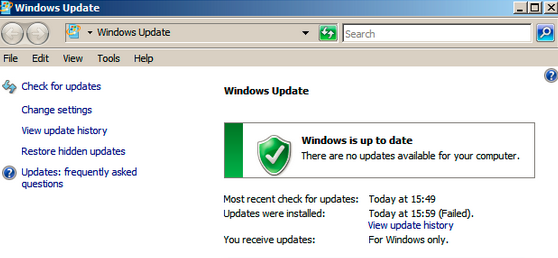
1. Keep your Windows operating system up to date

The first important step is to check if you have the latest security updates and patches available for your Windows operating system.
To get the security updates automatically, go to Control Panel and check if your automatic updating is turned on or follow the steps below:
  1. Access the search box in your Windows operating system, type updateand then Windows Update.
  2. Select Change settings.
  3. Click Install updates automatically (recommended), in case it is not already selected.
After the initial installation of available updates for your Windows operating system, keep the automatic update turned on in order to download and install the important updates that can help protect your computer against new viruses and security threats.
It is a very important step to install the latest security and stability fixes for your operating system, since hackers and cybercriminals always try to benefit from these security holes.
ws_update

2. Keep your software up to date

It is important to have not only your Windows operating system up to date, but the software you are using, therefore make sure you have the latest updates and security patches for your main programs and applications.
Since it is a well-known fact that hackers try to exploit popular software, such as Java, Adobe Flash, Adobe Shockwave, Adobe Acrobat
Reader, Quicktime or popular web browsers like Chrome, Mozilla Firefox or Internet Explorer, always make sure you have the latest available patches.
Since these pieces of software are always under threat from criminal minds, don’t just rely on your memory to manually update every program or application you have installed. Simply install a dedicated solution to perform these actions for you.

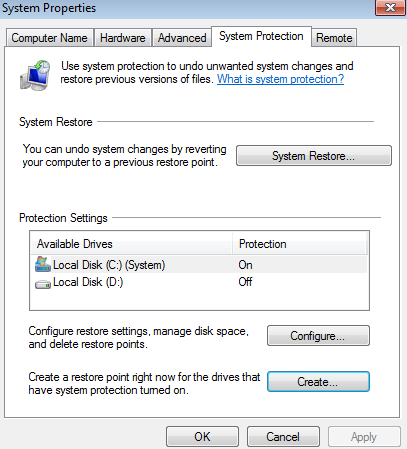
3. Create a Clean Installation restore point

After you have installed your security updates for your Windows operating system, make sure you have created a Restore Point for your installation.
You can create the Restore Point as soon as your Windows installation is ready and name it Clean installation and then you can continue installing drivers and applications.
In case one of the drivers causes issues on the system, you can always go back to the Clean installation restore point.
For more information on how to create a restore point in Windows, check this how-to article.
system_restore

4. Install a traditional antivirus solution against viruses

Use a known antivirus product from a big security company. It is important to have a reliable security solution on your system, which should include real-time scanning, automatic update and a firewall.
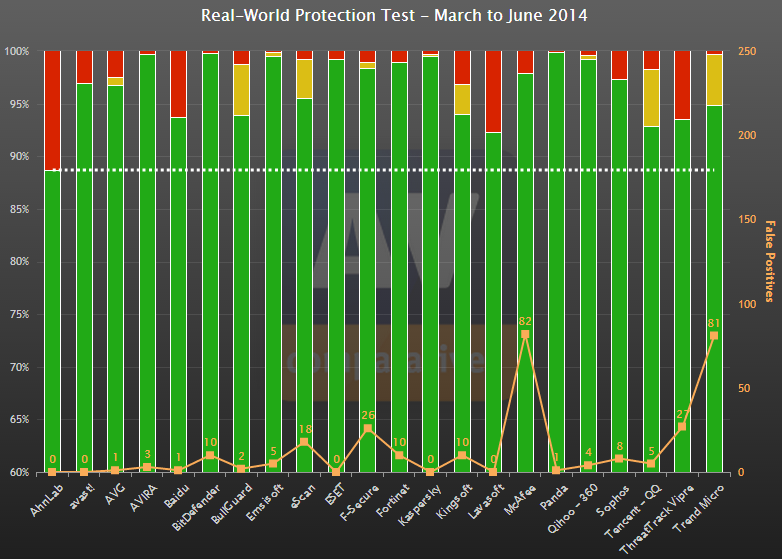
To find the best solution, check the antivirus test results run by big company names in the security industry, such as AV Comparatives, PC MagazineAV-TEST or Virus Bulletin and select the best antivirus solution for your system.
In case you choose to install a security product that doesn’t contain a firewall, make sure you have turned on the Windows firewall. To turn it on, go intoControl Panel, select Firewall, select Turn Windows Firewall on or off, then select Turn on Windows Firewall for all options.
av comparatives

5. Install a security solution against spyware

First of all, what exactly is spyware?
Spyware refers to that category of software which installs on your computer sending pop-ups, redirecting your browser to malicious websites or in some cases, it may even monitor your browsing history.
Usually, these are the signs a computer is infected with spyware:
  • computer is slow when opening programs or running some applications
  • pop-up windows appear all the time
  • a new toolbar may appear in your web browser
  • the Home page of your web browser has been modified
  • the search engine in your web browser has been changed
  • error messages start to appear unexpectedly

Can I prevent spyware from installing on the computer?

To avoid having spyware on your system, follow these good security practices:
  • don’t click any suspicious links or pop-up windows
  • don’t answer to unexpected answers or simply choose No
  • be careful when downloading free applications

How can I remove spyware from my system?

There are a number of popular anti-spyware products you can use to protect your system from malware. A few security solutions capable of removing spyware from your system are MalwarebytesSpybot Search and Destroy,Lavasoft’s Ad-Aware and others.
For more information on spyware, access this online document.

6. Install a dedicated security solution against financial theft

We need to say that a traditional antivirus solution cannot fully protect you against the latest financial malware out there. Financial malware is created to steal private data and confidential information.
To have the best protection against financial and data stealing malware, such as the infamous Zeus family or CryptoLocker, it is better to use a specially designed software.
Even though you are protected against traditional viruses and spyware, you still need a specially designed software to protect you against financial theft and data stealing software.
Heimdal Security is the solution which detects and blocks phishing websites and malicious servers controlled by IT criminals from removing your sensitive information.
This type of software offers a complementary layer of security which the normal antivirus products cannot provide.
To improve the financial control of your online banking account, you can always set banking alerts to track your account activity.

7. Back up your system

You updated the operating system and your system applications, you have installed additional security products for your system safety and even created a Clean installation restore point for your Windows.
The steps above are meant to keep you safe from malicious software and online threats, but you may still encounter hardware issues that could endanger your private information. To make sure your data stays safe, you should be using a twofold strategy, which should include combining anexternal hard drive usage with an online backup service.
We need to emphasize the importance of having a back-up solution which provides stability (look for a big company name), it’s easy to use (so you won’t have a headache backing up from files), allows you to synchronize your files with the online backup servers and provides some sort of security, such as encryption capabilities.
Online Backup
Access this online location for more information on most popular backup solutions available.
At the same time, you could simply use your Windows Backup system.
To set it up, access your Windows Control Panel and then click Backup and Restore to access the location. From this place, you can set an automatic backup, create a schedule and even choose a network location for your backup files.

8. Use a standard user account to access your Windows operating system

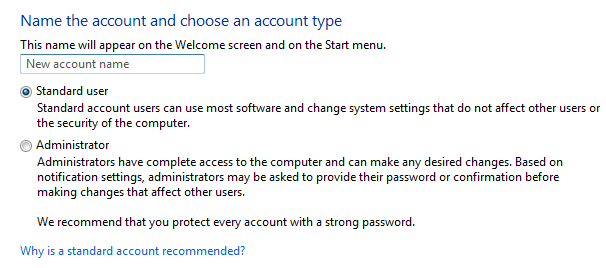
Windows grants a certain level of rights and privileges depending on what kind of user account you have. You may have a standard user account or an administrator user account.
It is recommended to use standard accounts for your computer to prevent users from making changes that affect everyone who uses the computer, such as deleting important Windows files necessary for the system.
In case you want to install an application or make security changes, Windows will ask you to provide the credentials for an administrator account.
Using a standard account you make sure that a piece of malware which infects a limited-user account won’t do much damage as one infecting an administrator account.
We also recommend that you set a strong password for your Windows user account.
If you don’t want (or don’t have time) to use a password manager or to set a strong password, at least make sure you follow a few simple rules:
  •  the password should contain around 20 characters
  •  combine upper and lowercase letters, numbers and symbols
  •  don’t use the same password for other accounts
  •  change your password every 30 days
Windows account

9. Keep your User Account Control turned ON

Many users have the tendency to turn off User Account Control after installing/reinstalling the Windows operating system.
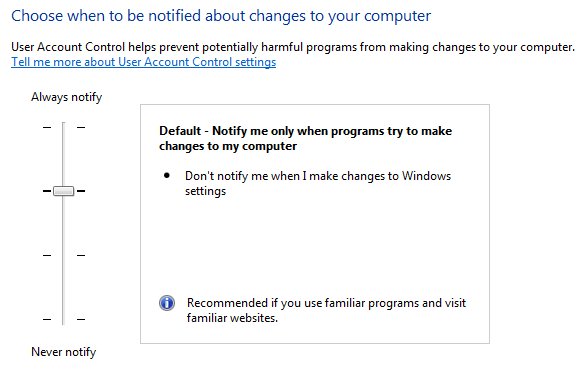
We don’t recommend this. Instead of disabling the UAC, you can decrease the intensity level using a slider in the Control Panel.
UAC monitors what changes are going to be made to your computer. When important changes appear, such as installing a program or removing an application, the UAC pops up asking for an administrator-level permission.
In case your user account is infected with malware, UAC helps you by keeping suspicious programs and activities from making changes on the system.
UAC

10. Secure your web browser before going online

Since our web browser is the main tool used to access the Internet, it is important to secure it before going online.
The vulnerabilities on your web browser are like open door invitations to hackers. Using these vulnerabilities, the attackers will try to remove private information or destroy important data.
To stay safe while accessing various web pages, make sure you respect the following:
  1. Choose the latest version for your browser.
  2. Make a series of security changes in your web browser settings. For an extended explanation on how to configure your web browser, we recommend the following article.
  3. Choose a private browsing session when you access a website you are not sure about. Choosing this browsing mode will prevent authentication credentials (or cookies) from being stored.
  4. Since data stealing malware spreads through malicious code embedded in pop-up windows even in legitimate websites, make sure your web browser can block pop-ups:

11. Use BitLocker to encrypt your hard drive

Even if you set a password to your Windows account, intruders can still get access to your private files and documents. They can simply do this by booting into their own operating system – Linux, for example – from a special disc or USB flash drive.
A solution for this is to encrypt your hard drive and protect all your files. It is wise to use this degree of security if you use a laptop, which can be very easily stolen.
BitLocker is available on the latest Windows operating systems and you may turn it on at any moment. Even after you have enabled the BitLocker protection, you won’t notice any difference because you don’t have to insert anything else but your normal Windows user account password.
To activate BitLocker on your system, follow these steps:
  1. Click Start.
  2. Go to Control Panel.
  3. Access System and Security and click BitLocker Drive Encryption.
  4. Turn on BitLocker.
For additional information on BitLocker, check this article.

12. Lock it up!

A final touch for the security of your system is to add a Kensington lock.
And why wouldn’t you? It’s so easy these days to have your mobile devices stolen, especially a laptop or a notebook, that adding a physical security measure doesn’t seem to be a bad idea.
Though Kensington locks are usually used in large places, like libraries, private companies and public offices, this doesn’t mean you can’t use one in your own home.
For more information on a Kensington lock, access this location.

13. Be careful online and don’t click suspicious links

To make sure you won’t be infected by clicking on dangerous links, hover the mouse over the link to see if you are directed to a legitimate location. If you were supposed to reach your favorite news website, such as “www.cnn.com”, but the link indicates “hfieo88.net“, then you should resist the urge of clicking the link.
Most of us use shortening services for their links, such as goo.gl or tinyurl. But in some cases an unknown link may send you to a malicious site that can install malware on the system.
So, how can you know where you’ll arrive if you click it?
To make sure you are going to the right direction, use a free tool such as Redirect Detective. This tool will allow you to see the complete path of a redirected link. Another tool which can provide very helpful in checking suspicious links is the reliable URL checker, VirusTotal.
For more information on how to maximize your financial data protection, check out this article.

Conclusion

It’s not just about staying safe. 
The steps above are meant to keep you safe online. But, at the same time, following them means that you also set up your system to work smoothly for online browsing and financial operations, activities we do every day.
Since there are many other solutions to protect a system after a Windows installation, we would also like to know your opinion.

Tuesday, March 17, 2015

10 steps to harden Windows Server 2008

sasquatch.jpg


Ever
since it’s debut, Microsoft Windows 2008 Server has
awed security and systems administrators with its complex and innovative features.
With threats becoming each day more immanent and efficient, security system administrators
face the tedious task of protecting Microsoft’s new giant. In this article we compiled
some of the industries best practices such as NIST to
show you some of the features and ways to reduce your windows 2008 servers’ exposure.


1.
Configure a security policy


The
first step in securing the 2008 server is to configure a security policy. In order
to configure a security policy, you will need to use the SCW (
Security
Configuration Wizard
),
which can be installed through “add and remove windows components”. 
The
SCW detects ports and services, and configures registry and audit settings according
to the servers “role” or installed applications. The SCW uses a set of XML templates
which can easily be deployed and managed. 
The
version of SCW in Windows Server2008 includes over 200server role configurations
and security settings than the version of SCW in Windows Server2003. Also, by
using the version of SCW in Windows Server2008, you can:
  • * Disable unneeded services based on the server role.
  • * Remove unused firewall rules and constrain existing firewall rules.
  • * Define restricted audit policies.
>>

SCW_ConfigAction_Fig1_small.png


The
server’s operating system will be changed according to the profile or template selected.
Administrators
can create custom profiles and deploy them using a set o XML files.


2.
Disable or delete unnecessary accounts, ports and services


Attackers
often gain access to servers through unused or not configured ports and services.
To limit entry points, server hardening includes blocking unused ports and protocols
as well as disabling services that are not required. Although this can be done as
seen above using the SCW, the server administrator would need to double check to see
if all the services are configured properly and that only the necessary ports are
open.
During
the installation of the 2008 server, by default, three local user accounts are automatically
created: the Administrator, Guest and Help Assistant. The Administrator account bears
high privileges, and requires special diligence. As a security best practice the administrator
account should be disabled or renamed to make it more difficult for an attacker to
gain access. 
Both
Guest and Help Assistant accounts provide an easy target for attackers which exploited
this vulnerability before on the earlier Windows Server 2003. These
accounts should be disabled at all times.


3.
Uninstall Unnecessary Applications
Remember,
your server is a vital part of your network and services that you provide. The number
of applications installed on these servers should be role related and set to a minimum.
It is a good idea to test these applications out in a separate environment before
deploying them on the production network. Some applications make use of service backdoors,
which can sometimes compromise the overall security of the server. After installing
each application, make sure that you double check to see if the application created
any firewall exception or created a service user account.


      • Belarc
        Advisor
         :
        The Belarc Advisor “builds a detailed profile of your installed software and hardware,
        missing Microsoft hot fixes, anti-virus status, and displays the results in your Web
        browser.” This tool is free for personal use. Commercial, government, and non-profit
        organizations should look at their other products which include many more features
        for managing security on multiple computers.


      • *
        Microsoft SysInternal Tools
        :
        Microsoft provides a set of tools which can be used to monitor the server’s activity.
        These tools include: REGMONFILEMON,
        Process Explorer, Root Kit Revealer. These tools are great for understanding what
        a certain application or software does “under the sheets”.


4.
Configure the windows 2008 Firewall
Windows
2008 server comes with a phenomenal built in firewall called the Windows Firewall
with Advanced Security. As a security best practice, all servers should have its own
host based firewall. This firewall needs to be double checked to see if there are
no unnecessary rules or exceptions. I have outlined some of the new features that
the Windows Server 2008 provides.


    • GUI
      interface
      :
      a MMC snap-in available for the Advanced Firewall Configuration.
    • Bi-directional
      filtering
      :
      the firewall now filters outbound traffic as well as inbound traffic.


    • IPSEC
      operability
      :
      now the firewall rules and IPSEC encryption configurations are integrated into one
      interface.
    • Advanced
      Rules configuration
      :
      you can create firewall rules using Windows Active Directory objects, source amp;
      destination IP addresses and protocols.


wfas.jpg


5.
Configure Auditing


One
of the most significant changes on Windows
Server 2008
 auditing is that now you can not only audit who and what attribute
was changed but also what the new and old value was.
This
is significant because you can now tell why it was changed and if something doesn’t
look right you’re able to easily find what it should be restored to.


Another
significant change is that in the past Server versions you were only able to turn
auditing policy on or off for the entire Active Directory structure. In Windows Server
2008 the auditing policy is more granular.
As
a security best practice, the following events should be logged and audited on the
Windows Server 2008.

      • *
        Audit account logon events


      • *
        Audit account management

      • *
        Audit directory service access

      • *
        Audit logon events
      • *
        Audit object access
      • *
        Audit policy change


      • *
        Audit privilege use

      • *
        Audit process tracking

      • *
        Audit system events


audit.png


Most
log events on the event viewer have registered incident ID numbers; these numbers
can be used to troubleshoot the server. http://www.eventid.net/ is
a good site which aids security and system administrators in finding out what actually
happened with their servers. A best practice would also be to forward these audit
logs to a centralized server as required by PCI
DSS 10.5.3
 and other industry standards. Windows
Server 2008
 offers a native log subscription feature which forwards all system
and security audit logs to a centralized server.


6.
Disable unnecessary shares

Unnecessary
shares pose a great threat to vital servers. After a server or application deployment,
system and security administrators should check to see if the server has any unnecessary
shares. This can be done using the following
command:
· Net
Share

This
will display a list of all shares on the server. If there is a need to use a share,
system and security administrators should configure the share as a hidden share and
harden all NTFS and Share permissions.

C:\Documents
and Settingsgt;net share

Share
name Resource Remark
——————————————————————————-
ADMIN$ C:\WINDOWS Remote
Admin
C$ C:\ Default
share
IPC$ Remote
IPC


In
order to create a hidden share, put a $ sign
after the share name. The share will still be accessible; however it will not be easily
listed through the network. Example:
· Accounting$


7.
Configure Encryption on 2008 server
According
to industry best practices, such as HIPAA and GLBA require
that certain servers which host sensitive information should make use of encryption. Windows
Server 2008 provides a built in whole disk encryption feature called BitLocker
Drive Encryption
 (BitLocker). BitLocker protects the operating system and data
stored on the disk. In Windows Server 2008, BitLocker is an optional component that
must be installed before it can be used. To install BitLocker, select it in Server
Manager or type the following at a command prompt:

· ServerManagerCmd
-install BitLocker –restart


bit.jpg


8.
Updates amp; Hot fixes
Updates
and hot fixes are key elements when hardening a server. System and security administrators
should be constantly updating and patching their servers against zero day vulnerabilities.
These patches are not limited to the operating system, but also any application which
is hosted on them. Administrators should periodically check the vendor’s websites
for updates. Windows Server 2008 offers a set of tools which helps administrator update
and patch their servers.

·
WSUS: Windows
Server Update Services (WSUS) provides a software
update
 service for Microsoft
Windows
 operating
systems
 and other Microsoft software. By using Windows Server Update Services,
administrators can manage the distribution of Microsoft hot
fixes
 and updates released through Automatic
Updates
 to computers in a corporate environment. WSUS helps administrators
track the “update health” of each individual server.


·
MBSA: Microsoft
Baseline Security Analyzer (MBSA) is an easy-to-use tool designed for the IT professional
that helps small- and medium-sized businesses determine their security state in accordance
with Microsoft security recommendations and offers specific remediation guidance.
Improve your security management process by using MBSA to detect common security misconfigurations
and missing security updates on your computer systems.


wsus.gif


9.
Anti Virus amp; NAP

Anti
Virus software is also a crucial step for hardening a server. Windows Server 2008
offers a set of tools which can help combat unauthorized network access and malicious
code execution.
Windows
Server 2008 offers a Network Access Protection (NAP), which helps administrators to
isolate viruses from spreading out into the network. Windows server 2008 NAP uses
a set of policies which cleans the affected machines and when they are healthy, permits
them access to parts of your production network.
NAP
consists of client server technology which scans and identifies machines that don’t
have the latest virus signatures, service packs or security patches.Some of
the key functions of a Windows Server 2008 NAP server includes:
      • Validating
        Machines
        :
        The mission of NAP is to preserve the integrity of the network by allowing only healthy
        machines to have IP addresses.


      • Restricting
        Network Access
        :
        Computers or servers which don’t meet the established policy standards can be restricted
        to a “quarantine” subnet where they would later be remediate the security issues.

      • Fixing
        Unhealthy Machines
        :
        Windows Server 2008 NAP has the ability to direct hosts to a remediation server, where
        the latest antivirus signatures and patches are deployed through SMS packages.


vista-nap.jpg

10.
Least Privilege


The
concept of least privilege has been adopted by many of today’s industry standards.
A hardened server needs to have all its access reduced to a bare operational minimum.
Most of the known security breaches are often caused by elevated privileges bared
by accounts. Server services should not be configured using enterprise wide administrator
accounts. Windows Server 2008 has a couple of tools which can aid administrator to
grant or revoke access to specific sections of the server.


  • Script
    Logic’s Cloak
    : Script
    Logic Cloak is a product which enhances the Windows NT File System (NTFS) by providing
    increased security,
    more accurate audits and a vastly streamlined experience for users of the network.


  • PolicyMaker
    Application Security:
     
    PolicyMaker
    is an add-on
    for the Group Policy Management Console (GPMC). This tool allows administrators to
    adjust application privilege levels to the lowest possible point in order to limit
    damages stemming from network attacks or user error. The ability to control security
    at such a granular level also helps organizations comply with regulatory mandates
    such as the Sarbanes-Oxley, HIPAA and Gramm-Leach-Bliley acts.


On
the next Post I will go over each feature here described, creating a setp by step
guideline on how to configure and install the following features:
*
SCW
*
Bitlocker
*
NAP

*
Windows Firewall with Advanced Security

source : http://blog.tevora.com/